QuoteForce
QuoteForce
for carpenters
Quotes that sell the job, a deposit the moment they say yes, and every job, cost and invoice in one place. Your office admin, on your phone, made for carpenters.
The app screens are the real app, from our demo business Ironbark Roofing. The quote is a real carpentry and decking sample. Every business and customer here is made up. Everything shown can be customised to suit your business.

Set up for carpenters
It runs the way carpenters work
QuoteForce isn't one-size-fits-all. Pick carpentry and decking when you sign up and it starts with a price list, ways to price and job options made for your trade, with deposits and booking in by the day. Then you change anything to suit your own business.
Your price list starts with
- New deck (per m²)
- Deck re-board (per m²)
- Stairs and handrails (fixed price)
- Doors and frames (fixed price)
- Wall framing (per m)
- Skirting and architraves (per m)
- Labour (per hr)
- Deck oiling (fixed price, optional extra)
You add your own prices, and rename, remove or add as many as you like.
- Job options to tap when quoting, like job, timber, height off ground.
- Books by the day. Pick the start and finish days when they say yes, and the customer gets told.
- Price whole jobs at a fixed price, or per metre, square metre, hour, item or day.
How it works
From the first quote to the money in the bank
QuoteForce runs on your phone. You quote on the spot, the customer says yes from their phone, and the job, the texts, the invoice and the money all follow on from that one quote. It does the admin a person in the office would do, so nothing gets typed twice and nothing gets forgotten.
- 1QuotePick from your price list or just say the job out loud. Add extras they can tick.
- 2They say yesThey read it on their phone, tick any extras and accept.
- 3Deposit and book inThe deposit invoice goes straight away. Pick the days and it's in the calendar.
- 4Do the jobMaterial costs, photos, changes and a checklist, all on the job.
- 5Invoice and get paidProgress claims or one final invoice. Reminders chase it for you.
- 6Know what's yoursSee what you made, and what to put aside for GST and tax.
Getting around
Four tabs. That's the whole app.
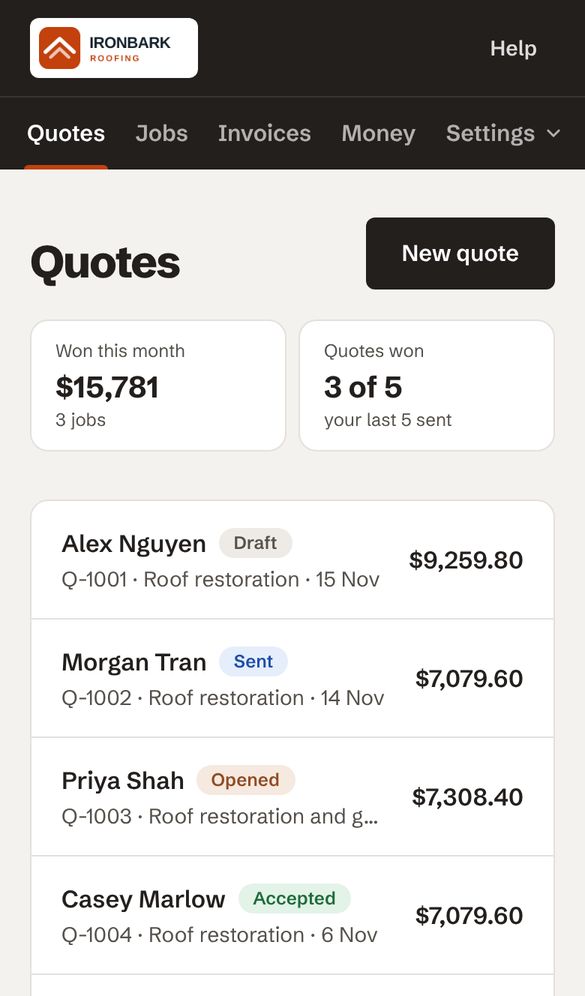
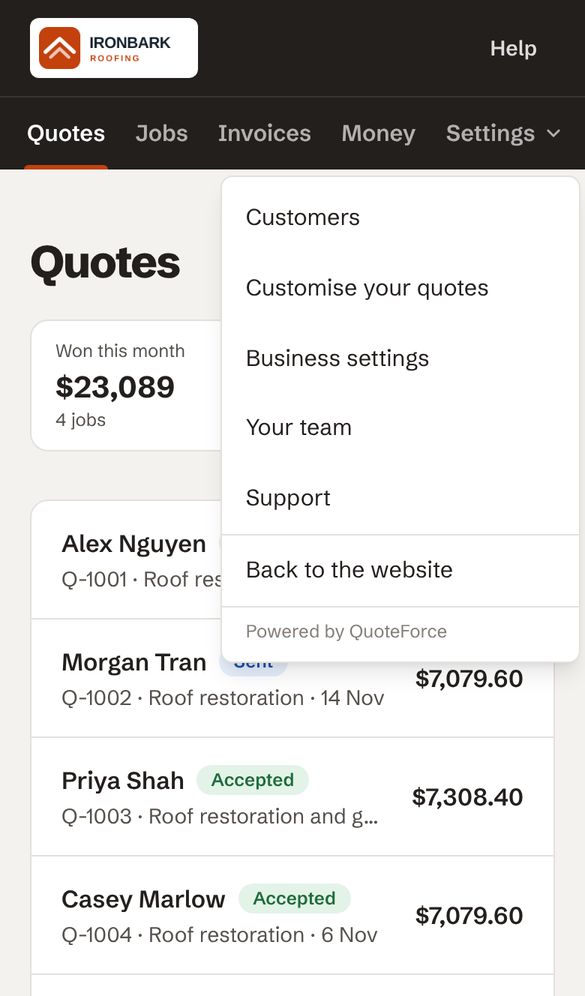
Quotes, Jobs, Invoices and Money across the top, and everything else tucked under Settings. The Quotes tab shows what you've won this month and how many of your last quotes said yes.
- Every quote shows where it's at. Draft, sent, opened by the customer, accepted.
- Settings holds your customers, your quote look, your business details and your team.
- Works on any phone, tablet or computer. Add it to your home screen and it opens like an app.
Quoting
Quote from your own price list
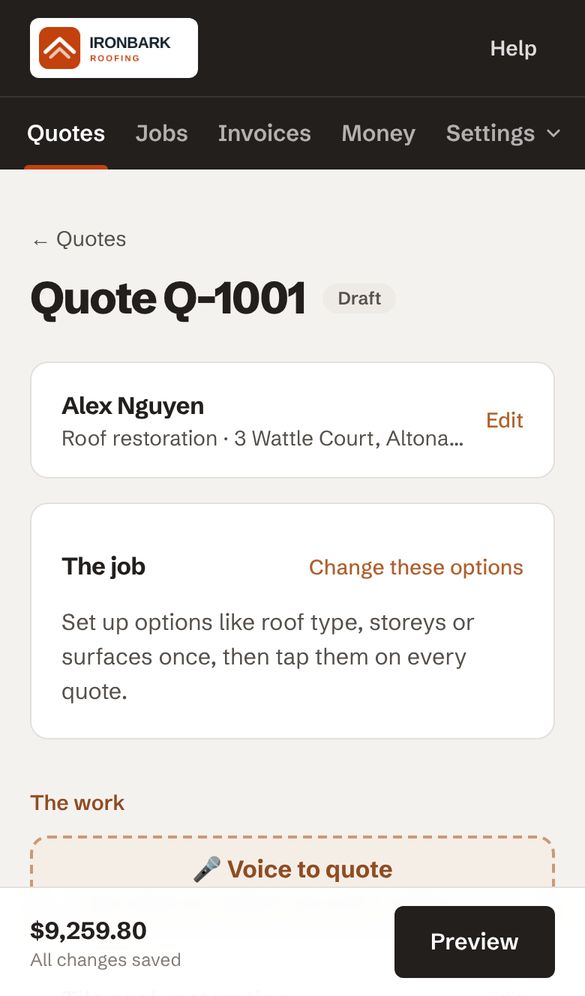
Your services, prices and the words that explain them sit in your price list. Tap one in and the description and what's included come with it. Change any line just for this quote.
- Group bigger jobs under headings like Stage 1 or Bathroom, each with a subtotal.
- Add optional extras the customer can tick.
- Prices go in before GST, and the quote shows GST and the total. Not registered for GST? It shows one price.
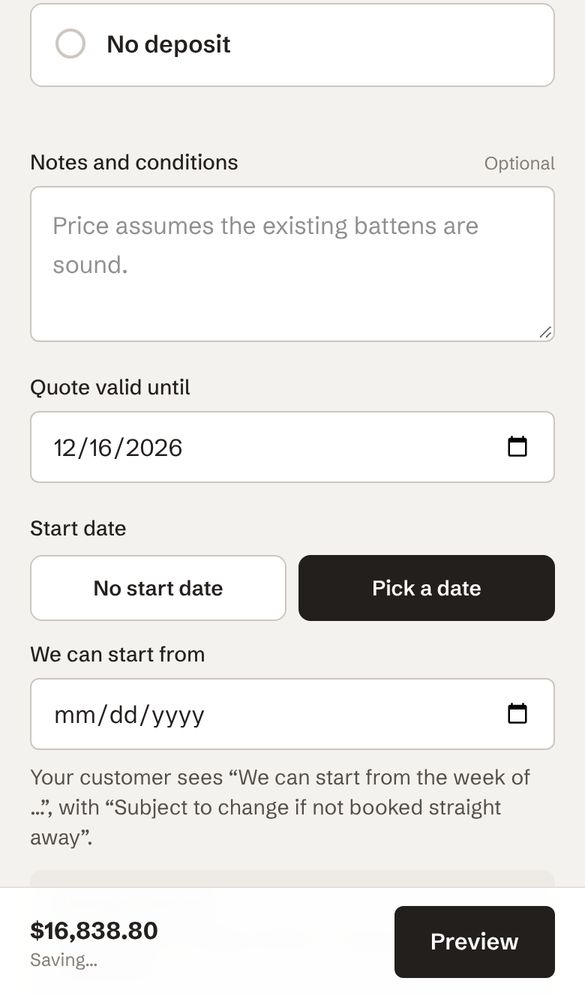
Voice to quote
Say the job and it writes the quote
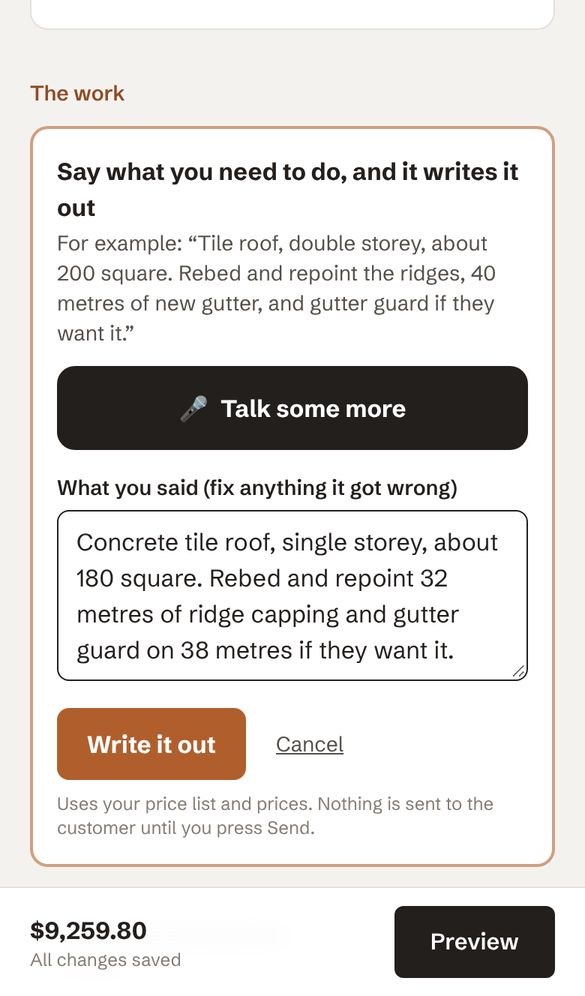
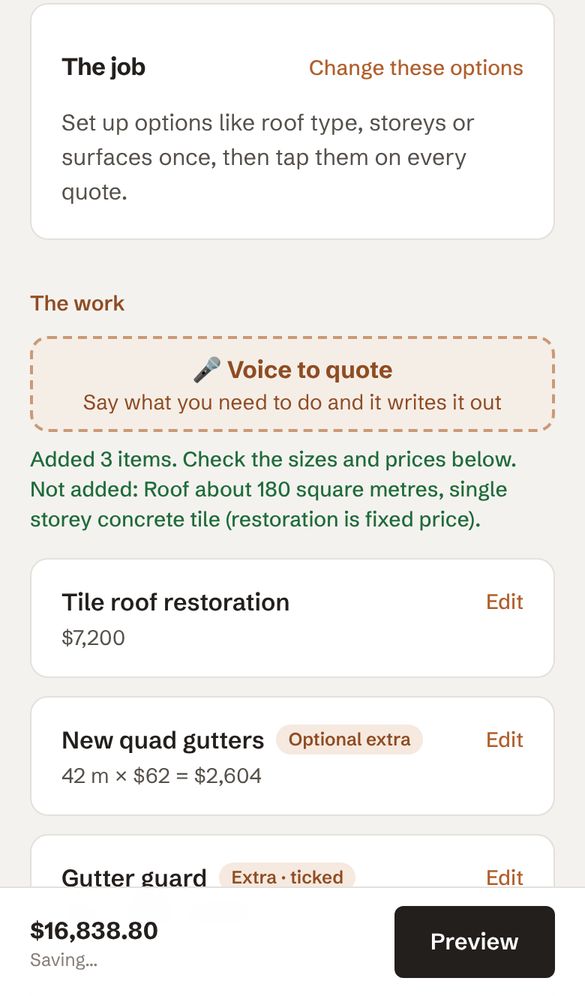
Tap Voice to quote and talk through the job like you would to a mate, something like "Two days work, materials about 600 dollars, and an extra if they want it." QuoteForce matches what you said to your own price list and fills in the lines, with sizes and hours. Check it, tweak it, send it. Somewhere noisy? Type a few words instead.
- It only uses your own prices, so nothing gets made up.
- Anything it couldn't match is listed, so nothing gets missed.
- Nothing goes to the customer until you press Send.
Extras and deposits
Let them add to the job, and take a deposit on yes
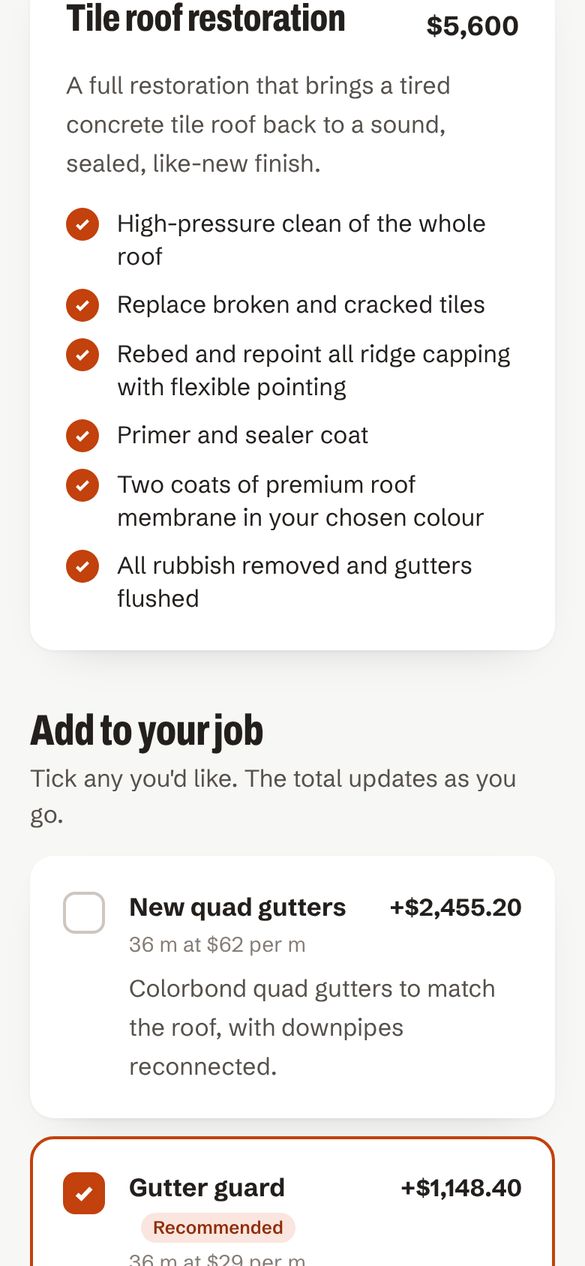
Optional extras sit under the main job with their own price. The customer ticks what they want and the total updates in front of them. When they accept, the deposit invoice goes out straight away, so the job is locked in before you order a thing.
- Set your usual deposit once, as a percentage or a set amount.
- Mark an extra as recommended so it stands out.
- Book by the time of day instead? Switch on Times in Settings.
What your customer sees
A quote that sells the job for you
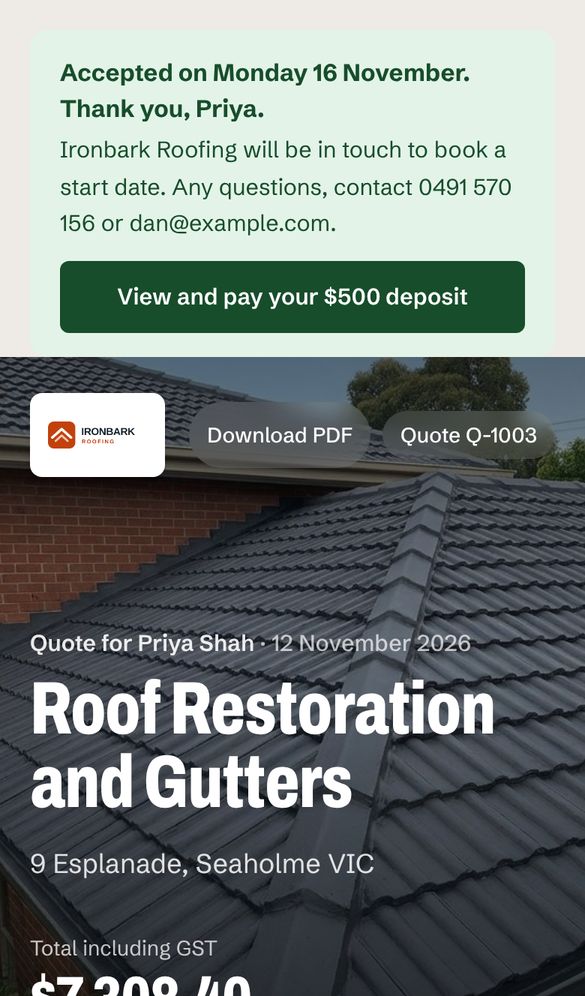
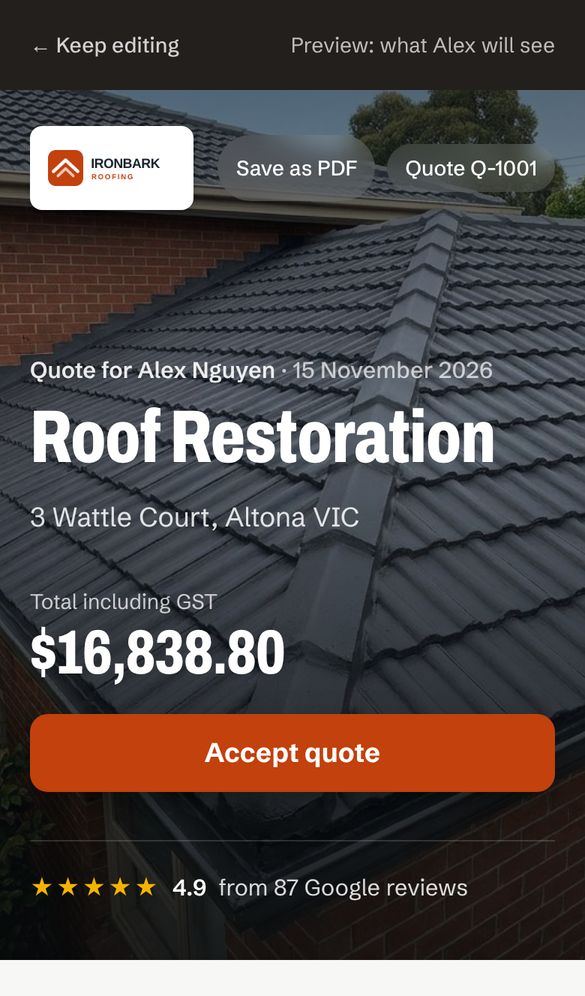
Your customer gets a text and an email with a link to their quote. It opens on their phone in your logo and colours, with the work in plain words, your reviews, why choose you, how the job runs and answers to common questions. They can save a PDF, and accept with one tap.
- Write your selling points, reviews and questions once, and they go on every quote.
- Your Google rating shows at the top.
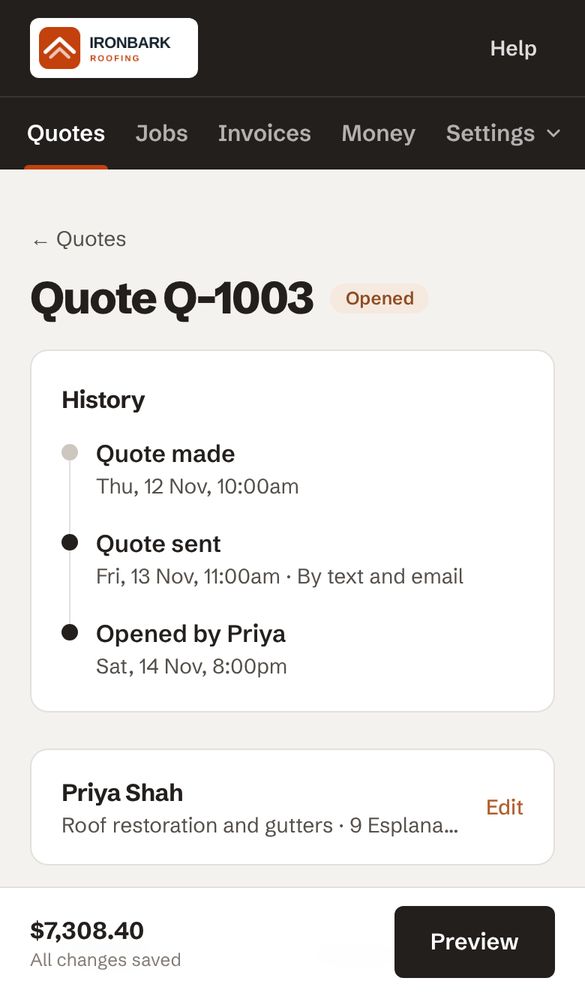
- You see the moment they open it.

When they say yes
You know straight away, and so do they
The moment Isla accepts, you get a text and the job appears on your Jobs tab, ready to book in. Isla sees a thank you, and the deposit invoice is right there to pay.
The text you get
Good news. Isla Fernandes accepted quote Q-5156 for 12 Barnhill Road, Terrigal NSW, $21,593 inc GST. The $500 deposit invoice has gone to them. Book it in at (link)
Follow-ups
It chases the quote so you don't have to
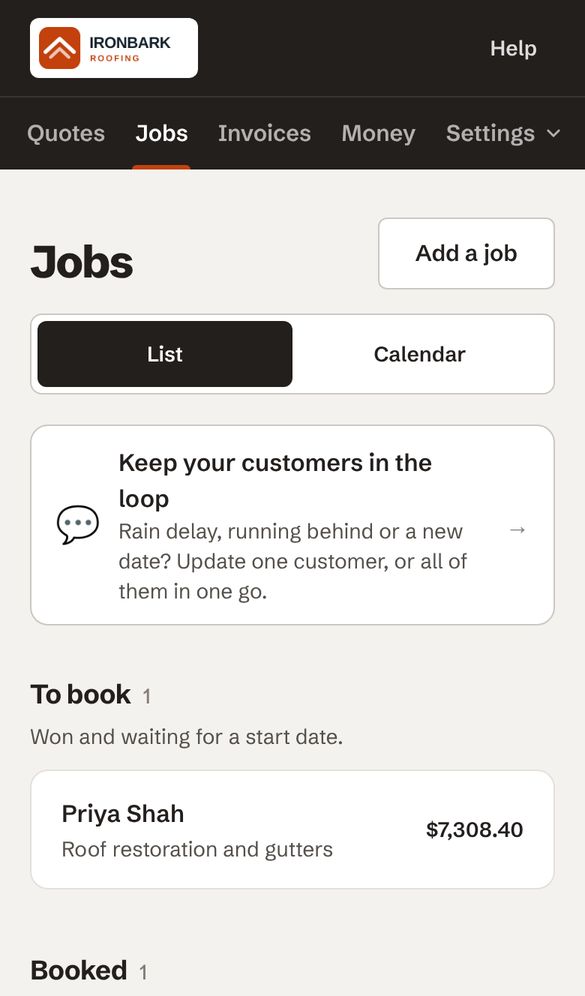
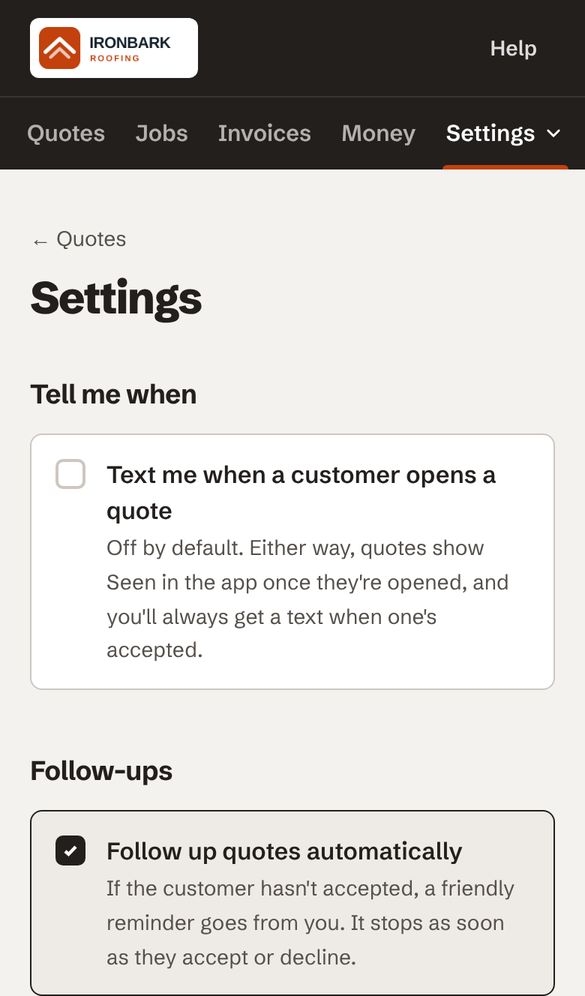
If a customer hasn't answered after a few days, a friendly follow-up goes from you by text and email. It stops the moment they accept or decline. Every quote keeps a history, so you can see when it was sent, opened and followed up.
- Choose how many days before the follow-up goes.
- It goes out from you, and replies come straight back to you.
- Want a text when a customer opens a quote? Switch it on.
The job
Everything about the job, in one place
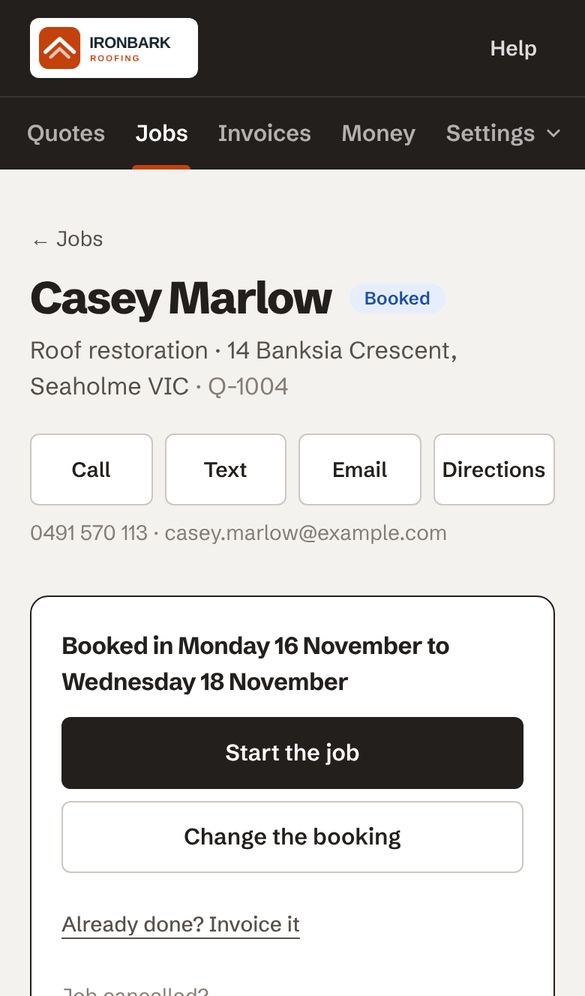
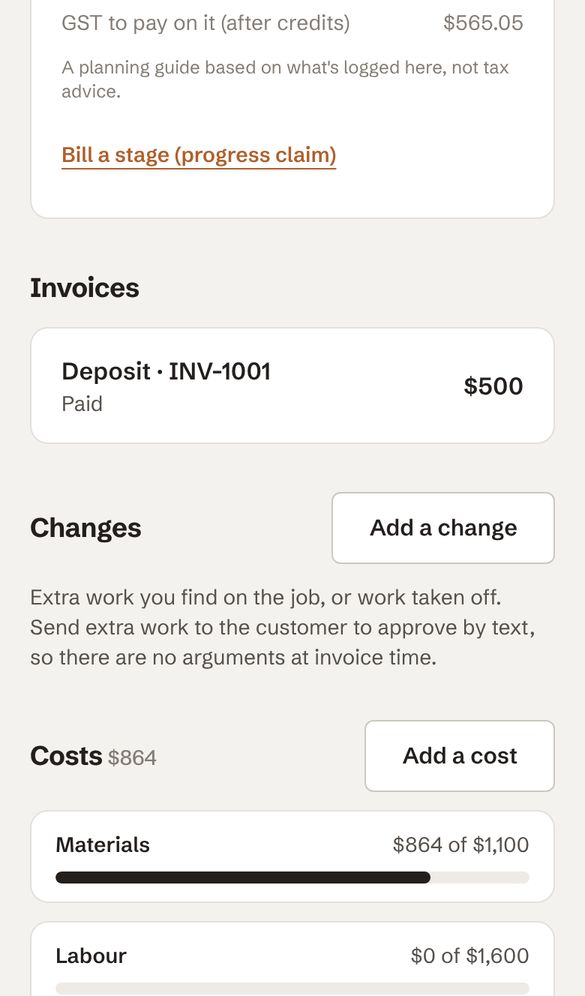
Each job has the customer, the booking and buttons to call, text, email or get directions. Log materials costs as you buy them, snap a receipt and it's read for you, take before and after photos, tick off a checklist and see what you'll make on the job.
- Found more work on the job? Send it to the customer to approve by text.
- Set what you expect to spend and see if you're on track.
- Weather or a delay? Update one customer, or all of them at once.
Calendar and reminders
Your week at a glance
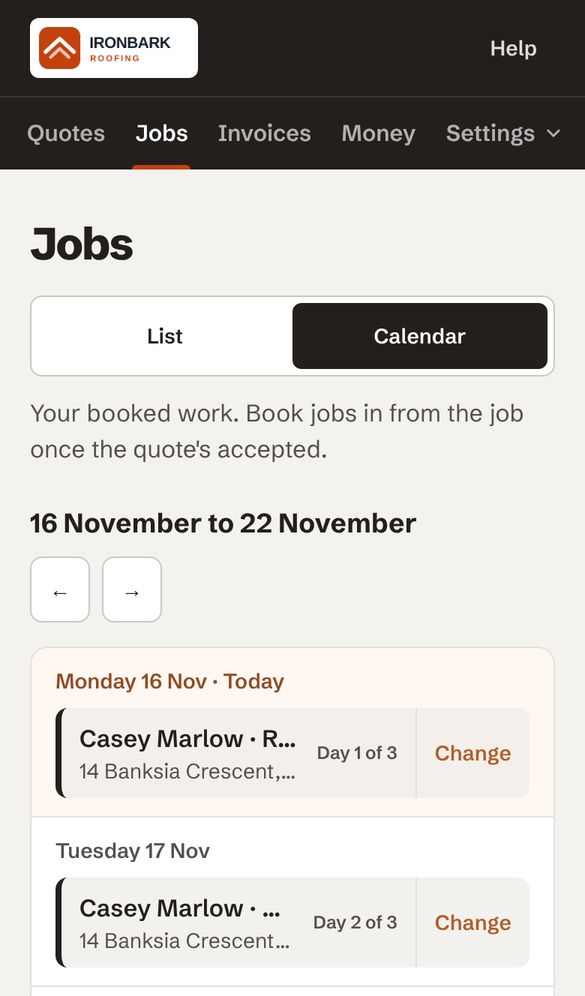
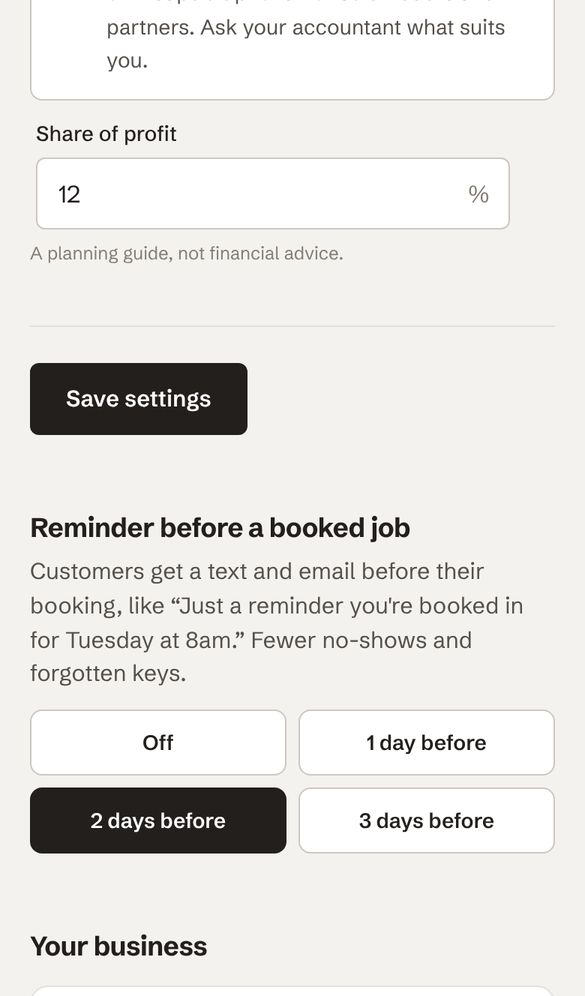
The calendar shows every booked job, day by day. Tap one to open the job, or Change to move it. Before each job the customer gets a reminder by text and email, so they know you're coming. Bookings also show in your iPhone or Google calendar, where a new one can take up to an hour to appear.
The reminder your customer gets
Hi Isla, Callum from Spotted Gum Carpentry here. Just a reminder you're booked in for Mon, 16 Nov. If anything's changed, just reply to this text. Thanks.
Invoicing
The invoice is already done
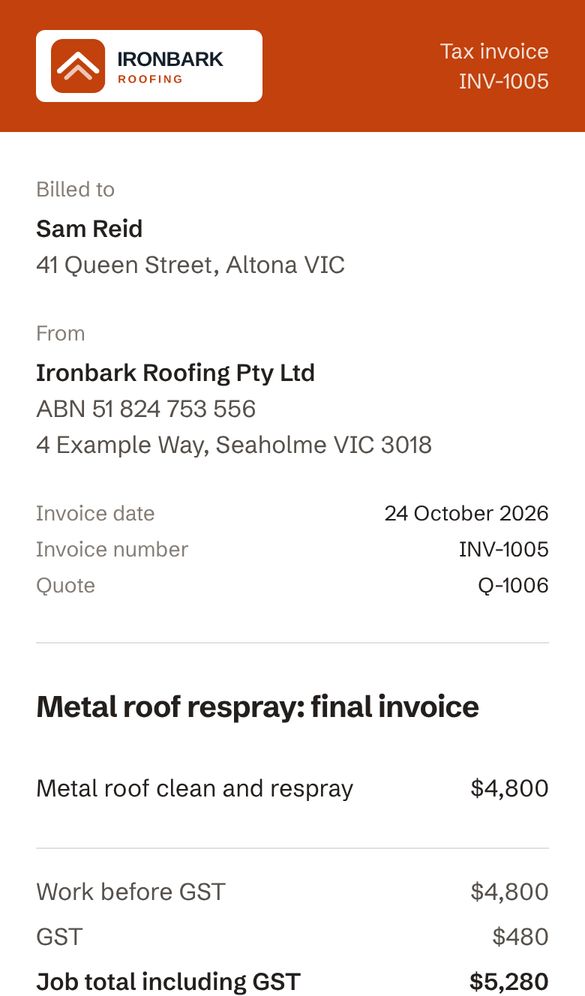
When the job's finished, tap Invoice it. The invoice is built from the quote, the extras they chose and any changes, takes off the deposit if there was one, and goes by text and email. The customer opens a proper tax invoice with your bank details and a reference to use.
- Bill in stages with progress claims, and hold back retention if the builder asks.
- Your ABN, GST and payment terms are filled in for you.
- Not registered for GST? Switch it off and nothing shows GST.
Getting paid
See who owes you, and let it do the chasing
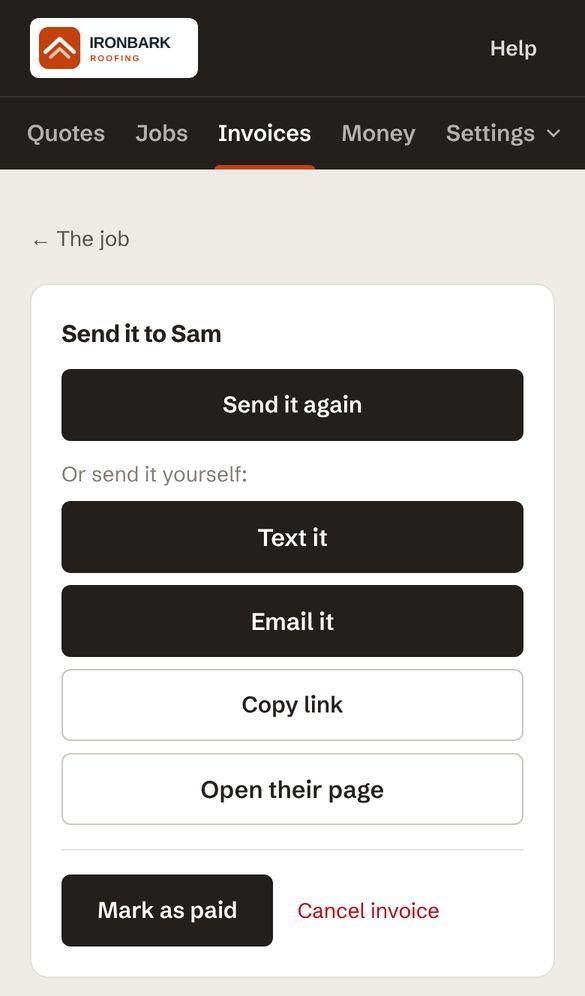
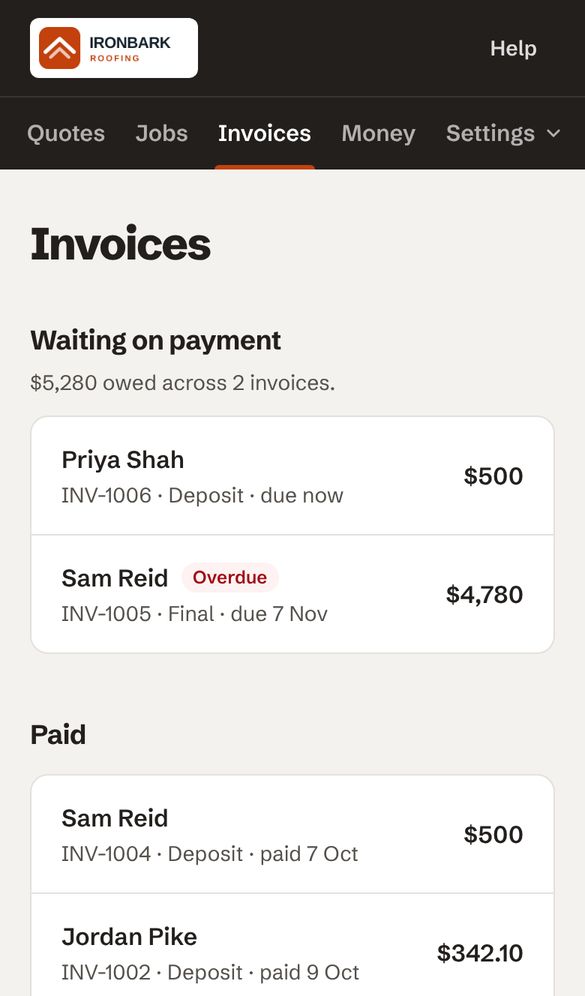
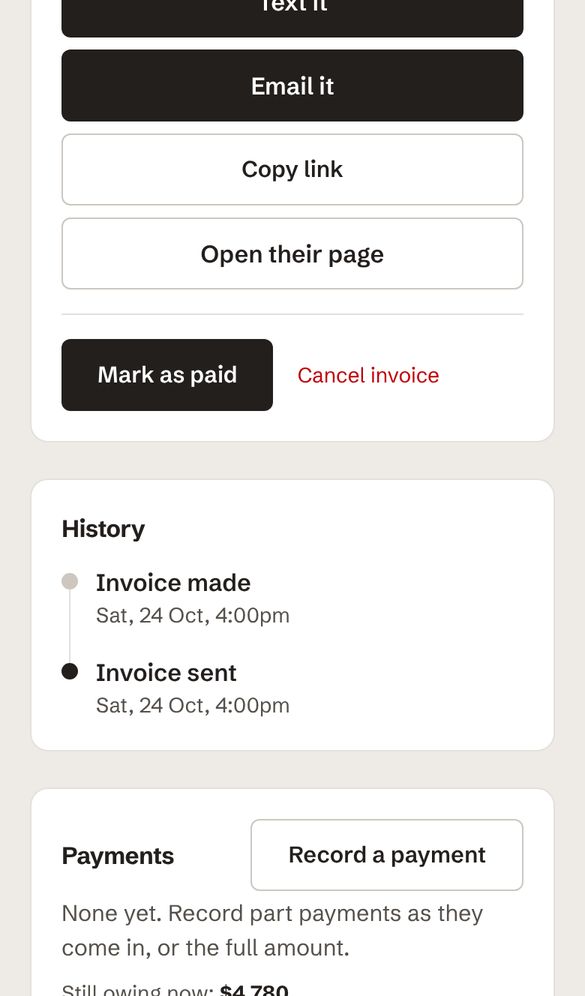
The Invoices tab shows what's waiting and what's overdue. Friendly payment reminders go out for you before and after it's due. Mark it paid, or record part payments as they come in.
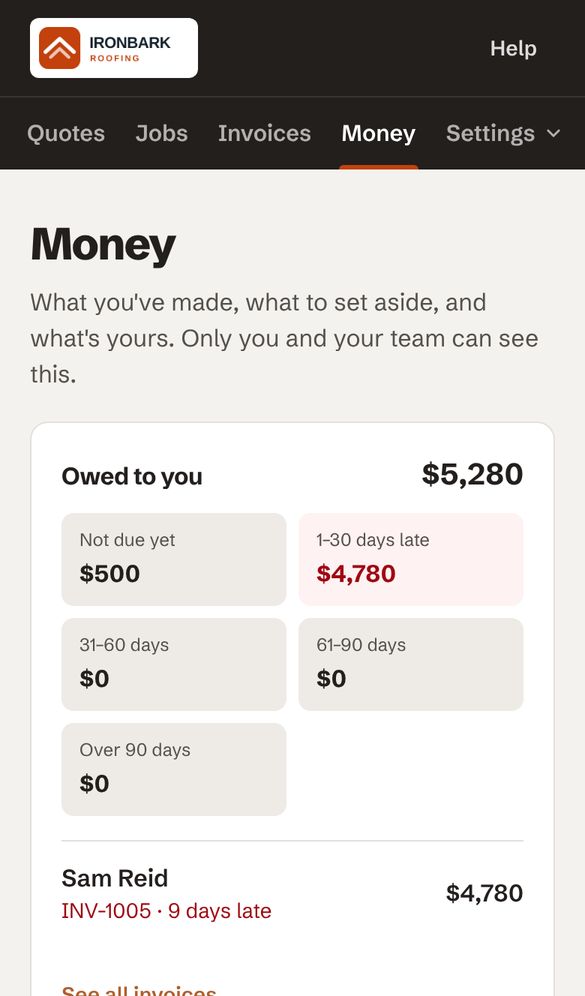
- Who owes you, split by how late it is.
- Use Xero? Invoices go into Xero and payments come back.
- Every invoice keeps its own history of sent, opened and reminded.
Money
Know what's actually yours
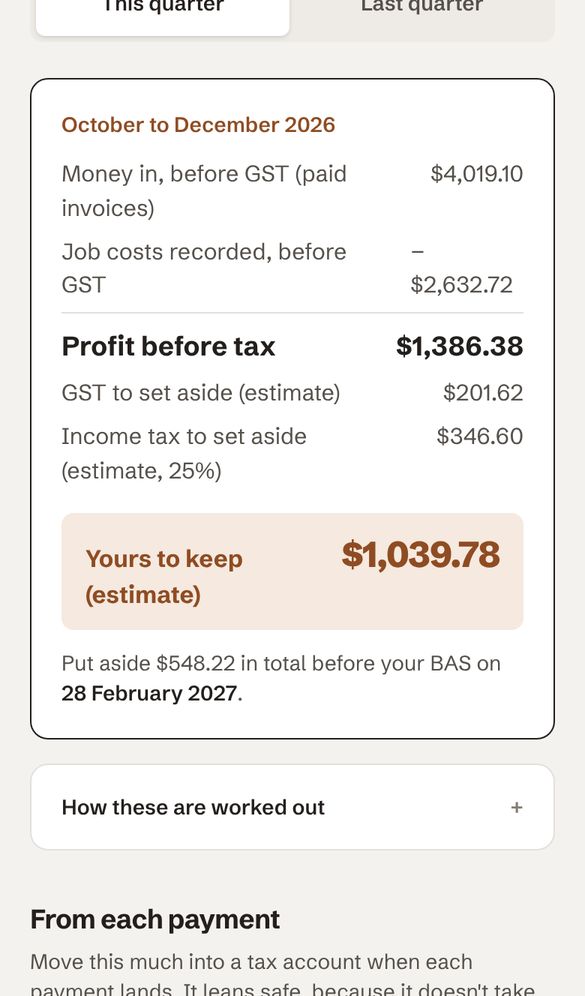
The Money tab adds up what's come in and what the jobs cost, and gives you a guide to what to put aside for GST and income tax before your BAS. It's a planning guide, not tax advice, but it takes the surprise out of the BAS.
- What to move into a tax account from each payment.
- Optional super to put aside if you're a sole trader.
- Profit on every job, from what you logged.
Customers
Every customer, and their whole story
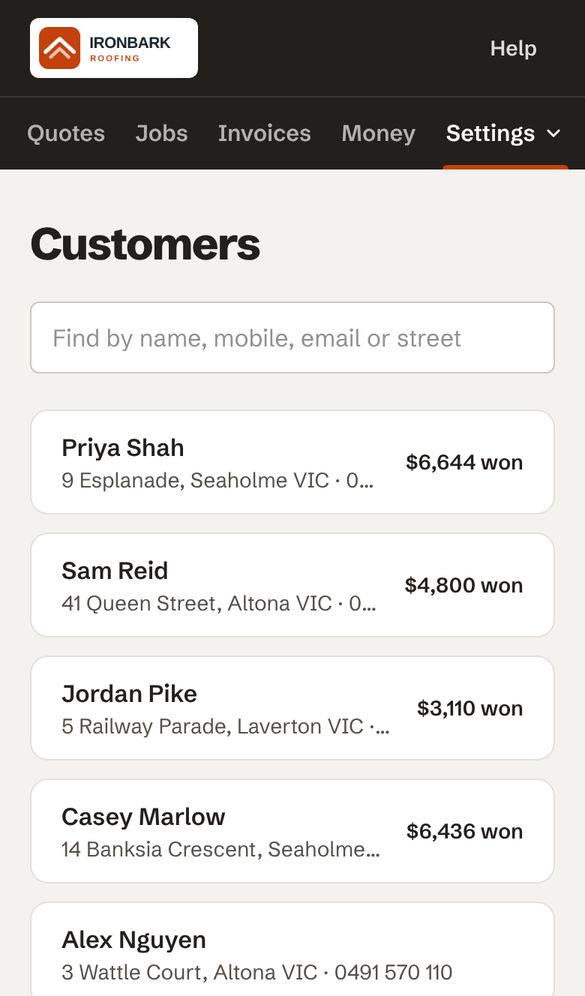
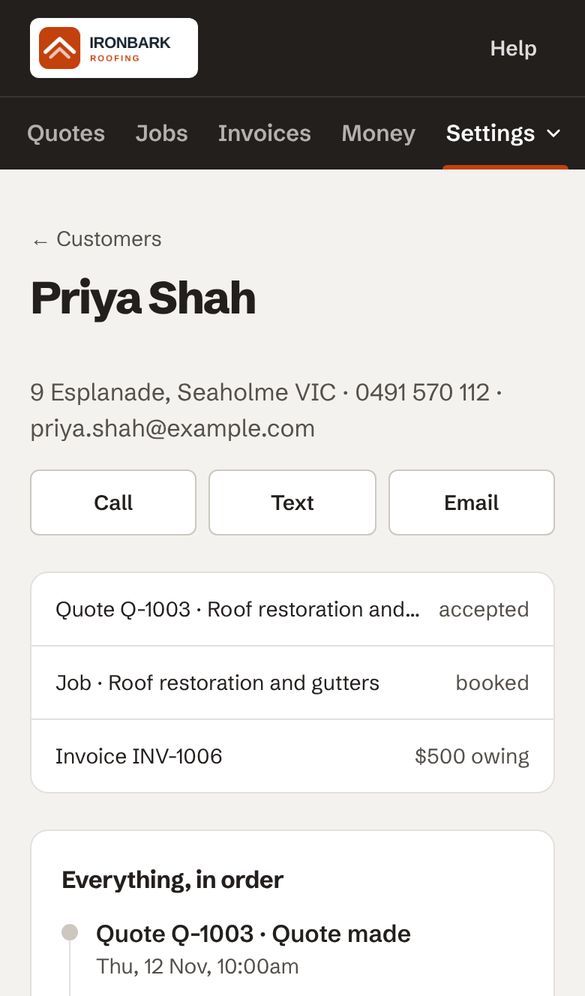
Search by name, mobile, email or street. Open a customer to see every quote, job and invoice they've had, and everything that happened in order, from the first quote to the last text.
- See how much each customer has spent with you.
- Set a reminder to quote a customer again, like a yearly service or clean.
- Once the job's done, it asks for a Google review for you.
Make it yours
Your logo, your words, set up in minutes
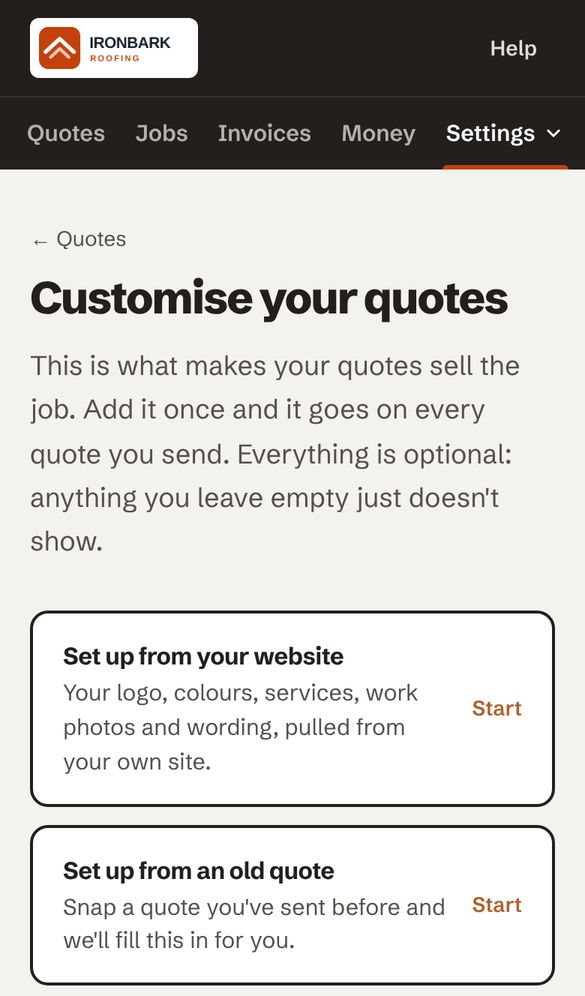
Point QuoteForce at your website and it pulls in your logo, colours, services and wording. Or snap an old quote and it fills in your price list. Then choose the look of your quotes and preview exactly what the customer will see.
- Four layouts, three fonts and your own colours.
- Add your licence, insurance, guarantee and terms.
- Anything you leave empty simply doesn't show.
Your team, and extras
Add your workers, switch on only what you need
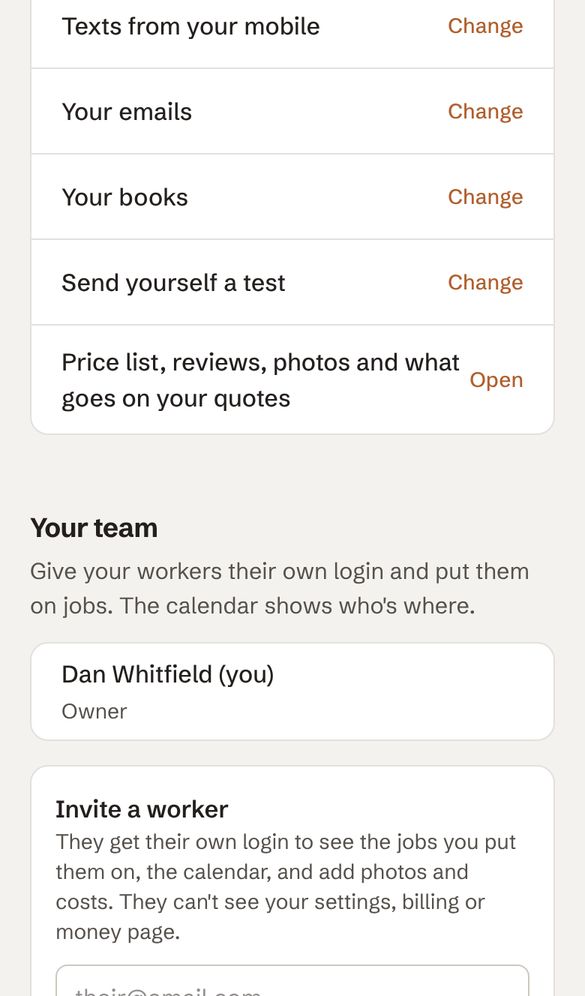
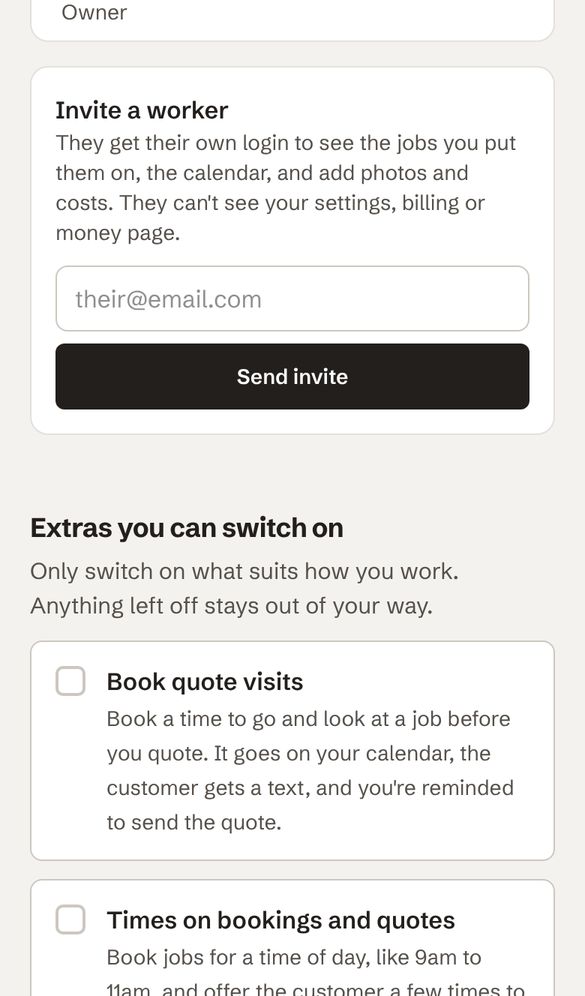
Invite a worker by email. They get their own login to see the jobs you put them on and the calendar, and to add photos and costs. They can't see your settings, billing or money. Extras like quote visits and timesheets stay off unless you want them.
- The calendar shows who's where.
- Book quote visits to look at a job before you quote.
- Timesheets for workers, if you pay by the hour.
Get started
Quoting in about 20 minutes
- 1Sign upPick carpentry and decking as your trade. You start with its price list and job options.
- 2Make it yoursAdd your logo and colours, or let it read them from your website.
- 3Set your pricesPut your prices on the list, or snap an old quote and it fills them in.
- 4Send yourself a testSee exactly what your customers get, then send your first real quote.
Stuck on anything?
Tap Help in the app and ask in your own words. It can explain anything and change settings for you, and if it can't sort it, a person gets back to you.
Tax and GST figures in QuoteForce are a planning guide, not tax advice.